The best png to svg converter tools transform raster images into scalable vector graphics that load faster and remain crisp at any screen size. Modern web design demands resolution-independent assets, making PNG to SVG conversion essential for marketers creating social media graphics, web designers optimizing site performance, and app developers needing scalable icons.
Converting PNG files to SVG format enables designers to create graphics that scale infinitely without quality loss while reducing file sizes for better web performance. This comprehensive guide covers the top free converter tools, step-by-step conversion methods, and professional optimization techniques to streamline your design workflow.
What is PNG to SVG Conversion?
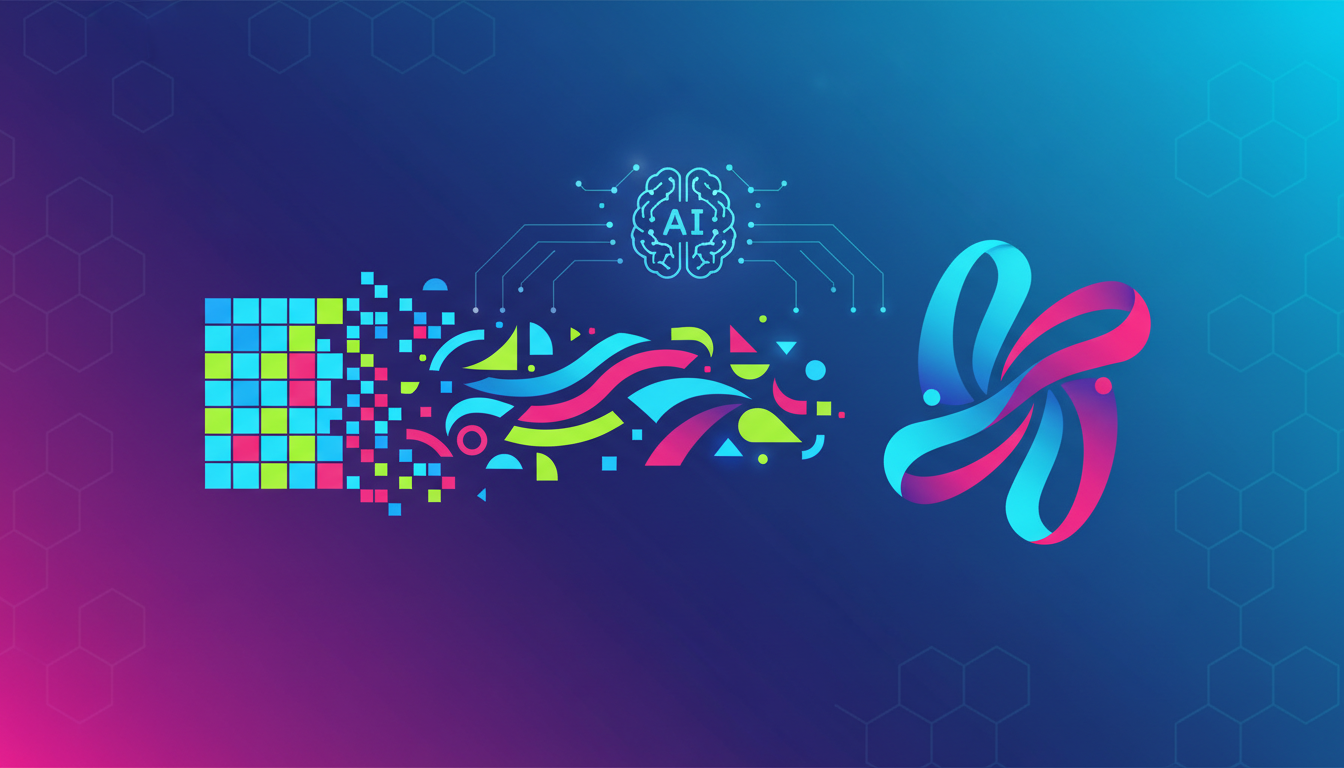
PNG to SVG conversion transforms raster bitmap images into scalable vector graphics. PNG (Portable Network Graphics) files store image data as pixels, while SVG (Scalable Vector Graphics) files use mathematical descriptions of shapes and paths that scale infinitely without quality loss.
The conversion process involves image tracing, where software analyzes pixel data and creates vector paths that approximate the original image. This transformation changes the image from pixel-based to vector-based, enabling perfect scaling and web optimization.
Converting PNG to SVG becomes necessary when you need images that scale perfectly across different screen sizes, load faster on websites, or integrate seamlessly into responsive designs. The process proves particularly valuable for logos, icons, and simple graphics that benefit from vector scalability.
Top 5 Free PNG to SVG Converter Tools
Choosing the right converter depends on your specific needs, from basic one-time conversions to advanced batch processing. Each tool offers unique features that cater to different user requirements and technical expertise levels.
1. Convertio - Best Overall PNG to SVG Converter
Convertio stands out as the most user-friendly png to svg converter with excellent balance of features and simplicity. The platform supports over 300 file formats and processes up to 100MB files in the free tier.
Key features:
- Drag-and-drop functionality
- Cloud storage integration (Google Drive, Dropbox)
- Automatic format detection
- Clean SVG output suitable for web and print
The free version allows 10 conversions per day, perfect for occasional users. Premium plans start at $9.99/month for unlimited conversions and larger file sizes up to 1GB.
2. Online-Convert - Best for Batch Processing
Online-Convert excels at handling multiple PNG files simultaneously, ideal for designers working with icon sets or large image collections. The platform offers advanced settings for color reduction, path simplification, and output optimization.
Key features:
- Batch processing up to 50 files at once
- Adjustable color palette reduction
- Smoothing settings and compression controls
- Advanced algorithms reducing SVG file sizes by up to 60%
Premium features include API access, faster processing speeds, and enhanced compression algorithms for professional workflows.
3. CloudConvert - Best API Support
CloudConvert provides robust API integration for developers needing automated PNG to SVG conversion in applications. The service supports webhook notifications, custom processing pipelines, and popular development framework integration.
Key features:
- 25 free conversions per day
- File size limits up to 1GB
- Custom conversion scripts
- Detailed conversion analytics
- Code examples for Python, JavaScript, and PHP
Developer-friendly documentation supports both synchronous and asynchronous processing modes for flexible implementation.
4. Vector Magic - Best for Complex Images
Vector Magic specializes in high-quality conversions of complex images with multiple colors and detailed elements. The proprietary tracing algorithm produces exceptional results for photographs and intricate graphics.
Key features:
- Automatic and manual tracing modes
- Preview functionality for comparison
- Fine-tuned conversion settings
- Professional-grade output quality
Free tier includes limited conversions with watermarks, while the desktop version costs $295 for unlimited use. Online subscription starts at $9.95/month for full-resolution downloads.
5. Illustration.app - Best AI-Powered Solution
Illustration.app combines PNG to SVG conversion with AI-powered design enhancement, perfect for creating custom illustrations from existing images. The platform uses machine learning to improve conversion quality and add artistic enhancements.
Key features:
- AI-based color optimization
- Automatic style enhancement
- Variation generation of converted images
- Direct export to popular formats and cloud storage
Affordable pricing starts at just a few dollars per month, making it accessible for small businesses and freelancers needing professional-quality results.
How to Convert PNG to SVG: Step-by-Step Guide
The conversion method you choose depends on your technical expertise, quality requirements, and available tools. Each approach offers different levels of control over final output quality and customization options.
Method 1: Online Converter Tools
Step 1: Choose a reliable online PNG to SVG converter from the recommended tools above. Navigate to the converter's upload page and verify your PNG file meets size requirements (typically under 100MB for free tiers).
Step 2: Upload your PNG file by dragging and dropping it onto the upload area or clicking the upload button. Most converters support multiple file uploads for batch processing efficiency.
Step 3: Configure conversion settings if available. Adjust parameters like color reduction, smoothing, and output quality based on your specific requirements. Use preview features when available to evaluate results.
Step 4: Click "Convert" and wait for processing completion. Download times vary based on file size and server load, typically ranging from seconds to a few minutes for standard files.
Step 5: Download your converted SVG file and test it in your target application. Check scalability and appearance at different sizes to ensure quality meets your project requirements.
Method 2: Adobe Illustrator Professional Conversion
Adobe Illustrator provides professional-grade conversion capabilities with extensive customization options. Open your PNG file in Illustrator and select "Image Trace" from the top toolbar or Window menu.
Choose from preset tracing options like "High Fidelity Photo" for complex images or "Simple Logo" for basic graphics. Adjust settings including threshold, paths, corners, and noise to fine-tune vectorization quality.
After tracing, expand the image to convert it to editable vector paths. Clean up unnecessary anchor points using the Simplify command and optimize file size by removing hidden elements before saving as SVG.
Method 3: Free Software with Inkscape
Inkscape offers powerful PNG to SVG conversion capabilities completely free. Download and install Inkscape from the official website, then import your PNG file using File > Import.
Select your imported PNG image and navigate to Path > Trace Bitmap. The dialog box offers multiple tracing options including brightness cutoff, edge detection, and color quantization for multi-color images.
Experiment with different settings and use the preview feature to find optimal results. After tracing, delete the original PNG layer and save your file as "Plain SVG" to ensure maximum compatibility across applications.
PNG vs SVG: When to Use Each Format
Understanding when to use PNG versus SVG formats helps you make informed decisions about file conversion and optimization. Each format serves specific purposes and excels in different scenarios.
| Feature | PNG | SVG |
|---|---|---|
| Best for | Photography, complex images | Icons, logos, simple graphics |
| Scalability | Fixed resolution | Infinite scaling |
| File size | Large for detailed images | Small for simple graphics |
| Editing | Pixel-based editing | Vector editing with code |
| Browser support | Universal | Modern browsers (IE9+) |
| SEO benefits | Image optimization | Searchable text, smaller files |
Best Use Cases for PNG Files
PNG files excel for photographic content and complex images with gradients, shadows, and detailed textures. The format preserves image quality perfectly and supports transparency, making it ideal for product photos and detailed illustrations.
Use PNG for screenshots, detailed artwork, and any image where pixel-perfect reproduction is essential. The format works universally across all browsers and applications without compatibility concerns.
PNG remains the best choice for images displayed at fixed sizes that don't require scaling. Social media graphics, email newsletter images, and print materials often benefit from PNG's reliable quality reproduction.
Best Use Cases for SVG Files
SVG files are perfect for logos, icons, and simple graphics that need to scale across different screen sizes and resolutions. The vector format ensures crisp appearance on everything from mobile phones to large desktop displays.
Web designers prefer SVG for user interface elements, navigation icons, and decorative graphics that must remain sharp on high-DPI displays. The format integrates seamlessly with CSS styling and JavaScript animations.
SVG files are ideal for responsive design projects where images must adapt to various viewport sizes. The scalable nature eliminates the need for multiple image sizes, simplifying asset management and improving performance.
Benefits of Converting PNG to SVG
Converting PNG to SVG provides significant advantages for web performance, design flexibility, and user experience. These benefits compound over time, making the conversion process worthwhile for long-term projects.
Infinite Scalability and Resolution Independence
SVG files maintain perfect quality at any size, from tiny mobile icons to large desktop graphics. This eliminates pixelation issues and ensures consistent visual quality across all devices and screen densities.
Vector graphics scale perfectly to any size without quality loss, making them ideal for responsive web design and high-resolution displays. A single SVG file works effectively across desktop monitors, tablets, and mobile screens.
Retina displays and high-DPI screens benefit significantly from SVG graphics, which appear crisp and clear at any pixel density. This eliminates the need to create and manage multiple image versions for different screen resolutions.
Web Performance Optimization
SVG files typically load faster than equivalent PNG images, especially for simple graphics and icons. Faster loading improves user experience and contributes positively to Core Web Vitals metrics that affect search engine rankings.
Reduced bandwidth usage benefits both website owners (lower hosting costs) and users (faster loading on slow connections). The cumulative effect of optimized graphics can significantly improve overall site performance.
File Size Reduction: Simple graphics often convert to much smaller SVG files compared to PNG equivalents. Smaller files load faster, consume less bandwidth, and improve overall website performance metrics.
SEO and Maintenance Advantages
Search engines can read and index text within SVG files, potentially improving search visibility. Additionally, faster loading times from smaller file sizes contribute positively to SEO rankings.
SVG files can be edited with code editors, making quick color changes and modifications possible without design software. This flexibility streamlines maintenance and updates for web projects.
Animation Capabilities: SVG files support CSS animations and JavaScript interactions that aren't possible with static PNG images. This opens creative possibilities for interactive web elements and engaging user interfaces.
Common PNG to SVG Conversion Issues and Solutions
PNG to SVG conversion can present challenges that affect final output quality and usability. Understanding these common issues and their solutions helps ensure successful conversions every time.
Quality Loss During Conversion
Some detail may be lost when converting complex PNG images to simplified vector paths. This is particularly noticeable with photographs and images containing gradients or subtle color variations.
Solution: Adjust tracing settings to balance detail preservation with file size optimization. Increase the number of colors in conversion settings for better accuracy, but expect larger file sizes. Use manual cleanup techniques after conversion to refine paths and improve quality.
File Size Increases
Complex PNG images can sometimes result in larger SVG files due to the number of vector paths required to recreate image detail. This defeats the purpose of conversion for web optimization.
Solution: Clean up generated SVG code by removing unnecessary metadata, comments, and unused definitions. Tools like SVGO automatically optimize SVG files by removing redundant code without affecting visual appearance. Simplify complex paths using path reduction algorithms that maintain visual quality while reducing file size.
Browser Compatibility Issues
While modern browsers support SVG well, older versions of Internet Explorer require fallback solutions for proper display across all user bases.
Solution: Use progressive enhancement techniques by providing PNG fallbacks for SVG images to ensure compatibility with older browsers. The <picture> element allows graceful degradation across different browser capabilities.
Color Accuracy Problems
Automatic conversion tools may alter colors during the tracing process, requiring manual adjustment to match original image colors precisely.
Solution: Use manual tracing modes in professional tools like Vector Magic or Adobe Illustrator. Compare original and converted images side-by-side and adjust color settings before finalizing the conversion.
Professional Tips for PNG to SVG Conversion
Efficient PNG to SVG conversion requires strategic planning and workflow optimization. Professional designers and developers use specific techniques to streamline the conversion process and maximize output quality.
Source Image Preparation
Start with high-quality PNG files at appropriate resolutions for better conversion results. Clean, well-contrasted images with clear edges convert more successfully than blurry or low-resolution sources.
Organize similar images together for batch conversion with consistent settings. This saves time and ensures uniform quality across image sets like icon collections or logo variations.
Automation Strategies
API integration allows developers to automate conversion processes within applications and content management systems. Services like CloudConvert offer robust APIs with comprehensive documentation and code examples.
Build custom scripts for batch processing large image libraries using command-line tools and programming languages. Python libraries like cairosvg and Node.js packages enable server-side conversion automation.
Implement conversion workflows in build processes and continuous integration pipelines to automatically optimize images during deployment. This ensures all graphics are properly converted without manual intervention.
Quality Assurance Best Practices
Test converted SVG files across different browsers and devices before final implementation. Check scaling behavior, color accuracy, and load performance in real-world conditions.
Maintain both original PNG and converted SVG files in organized folder structures. This enables easy updates and ensures you can always return to source files if needed.
Monitor conversion results with performance testing tools to ensure SVG files actually improve loading times compared to original PNG images. Sometimes the conversion doesn't provide expected benefits for complex graphics.
FAQ
Can I convert PNG to SVG for free?
Yes, numerous free png to svg converter tools are available online including Convertio (10 conversions/day), Online-Convert, and CloudConvert (25/day). Open-source software like Inkscape provides unlimited free conversions with professional-grade features. Free tiers typically have file size limits and conversion quotas but work well for occasional use.
Will PNG to SVG conversion lose quality?
PNG to SVG conversion can result in quality changes since you're converting from pixel-based to vector-based graphics. Simple images with solid colors convert excellently, while complex photographs may lose detail during the tracing process. The final quality depends on conversion settings, original image complexity, and the tool used for conversion.
What's the best PNG to SVG converter for beginners?
Convertio is the best PNG to SVG converter for beginners due to its user-friendly interface and reliable results. The platform offers drag-and-drop functionality, automatic format detection, and produces clean SVG files suitable for web use. The free tier provides 10 conversions per day, perfect for learning and occasional use.
How do I convert multiple PNG files to SVG?
Use batch conversion features in tools like Online-Convert or CloudConvert that support multiple file uploads. For large volumes, consider API solutions or desktop software like Inkscape with scripting capabilities. Adobe Illustrator also supports batch processing through actions and scripts for professional workflows.
Can I edit SVG files after conversion?
Yes, SVG files can be edited in vector graphics software (Illustrator, Inkscape), code editors for direct XML manipulation, or online SVG editors. The editing complexity depends on how the original conversion was performed - cleaner conversions with fewer anchor points are easier to modify than complex traced images.
Which PNG images convert best to SVG?
Logos, icons, and simple graphics with solid colors convert best to SVG format. Images with clean lines, minimal color palettes, and geometric shapes produce optimal results. Avoid converting photographs or complex images with gradients, as these typically result in large file sizes and quality issues.
How can I reduce SVG file size after conversion?
Optimize SVG files by removing unnecessary code, simplifying paths, and using external stylesheets for styling. Tools like SVGO automatically clean up SVG code without affecting visual quality. Consider reducing color palettes and combining similar paths to further decrease file sizes.
Conclusion
Converting PNG to SVG unlocks powerful advantages for web designers, developers, and content creators seeking scalable, optimized graphics. The best png to svg converter for your needs depends on factors like conversion frequency, quality requirements, and technical expertise level.
Start with free online tools like Convertio or CloudConvert for basic conversions, then explore professional solutions like Vector Magic or Illustration.app's AI-powered conversion for complex projects requiring premium results.
Not every PNG image benefits from SVG conversion - photographs and complex graphics often work better in their original format. Use the guidelines in this comprehensive guide to make informed decisions about when and how to convert your images for optimal results in your design workflow.